The JustGO mobile app provides these 2 services: -
1. ANPR, an alternative digital payment option known as Automatic Number Plate Recognition’ which uses bank cards to pay for toll transactions in a seamless, convenient & secure manner and is exclusively available at ALL LANES at ALL TOLL PLAZAS on PLUS Highways with the exception of :
a. Jambatan Pulau Peang Toll Plaza; and
b. U-turn at Tanjung Kupang Toll Plazas,
c. Please take note that only the RFID lanes at Bandar Cassia Toll Plaza are currently activated for ANPR.
d. Kindly refer to the JustGO website www.justgo.com.my or JustGO social media accounts for the latest list of participating toll plazas and locations, which may be amended, expanded or discontinue from time to time at the discretion of JGS.
2. Issuance of e-Invoice to the users of
a. PLUS Highways; and
b. LPT2 Highways; and
c. LLB Highways.
3. Customers must download this app and create an account to use this feature
The owner is JustGO Solutions Sdn Bhd, a fully owned subsidiary of PLUS Berhad.
1. Please download the JustGO mobile application from Android Play Store or Apple Store.
2. Please ensure you accept all future app updates for full and uninterrupted use of the App.
1. JustGO requires a minimum of Android 10, iOS 18.0.0 or EMUI (Huawei) version 10 to operate to ensure safety and protection for all.
2. Older operating systems which may not be supported with security patches may have a higher risk of vulnerability.
Yes, you must be 17 years old & above.
1. Verify your phone number – register with a valid mobile number.
2. Verify your email – confirm via email link.
3. Verify identity (e-KYC) – use a MyKad, MyTentera and passport, together with biometric checks.
4. Register your vehicle (e-KYV)– upload the Vehicle Ownership Certificate (VOC), the digital car grant from the Road Transport Department (JPJ) app, along with live photos showing the complete view of the front and back of your car.
5. Link payment – debit or credit cards as the payment mode for ANPR.
You will be required to provide these details
1. For Malaysian citizens
a. Full name as per your MYKAD/MYTENTERA
b. MYKAD/MYTENTERA identification number
2. For non-Malaysian citizens
a. Full name as per your passport
b. Passport number
3. Email address
4. Mobile number
5. And other relevant personal details as stated on the Registration Page.
1. Yes, please download the app and log-in (via SIGN IN option) with your existing PLUSMiles username and password.
2. You will be required to verify your mobile number or email where necessary.
3. PLUSMiles users are pre-registered with a JustGO Account allowing you to access JustGO without going through the registration process again.
4. If you notice that your details are outdated or incorrect, you may update them in the settings.
5. If you are unsure, please contact us at contact@justgo.com.my.
1. Electronic Know Your Customer, a digital process used to verify the customer's identity remotely replacing traditional, paper-based methods.
2. e-KYC involves verifying the customer’s identity through electronic means like facial recognition, document uploads and biometric data.
You will be required to complete the identity verification (e-KYC) process as below.
For Malaysians with MYKAD/MYTENTERA
1. Verify personal identity of the Customer with an official identification document i.e., MYKAD or MyTentera by taking photos of the front and back view of the document against a plain background and it must show the details clearly, completely and without obstruction; and
a. If you are a holder of the MYTENTERA ID, please use your MYTENTERA for verification
2. Please ensure your name and identification number in your profile matches the official identification documents. If it does not, please update your profile details before proceeding to identity verification.
3. Liveliness matching with a real-time selfie together and please ensure your face must be without obstruction, clearly visible and with good lighting to confirm you are physically present; and
4. Confirm the submitted images and details are accurate.
5. Failure to do so will result in result in inaccurate details being captured, rejection and require re-submission.
For non-Malaysian citizens with a passport
1. Verify personal identity of the Customer with an official identification document i.e., passport, by taking a photo of the 1st page of the passport against a plain background and clearly showing the standardized alphanumeric code (also known as the Machine Readable Zone) located at the bottom of the data page, typically on the 1st page of the passport. The Machine Readable Zone contains information such as the passport holder's name, document number, nationality, date of birth, sex, and expiration date and it must show these details clearly, completely and without obstruction; and
2. Please ensure your name and identification number in your profile matches the official identification documents. If it does not, please update your profile details before proceeding to identity verification.
3. Liveliness matching with a real-time selfie and please ensure where your face must be without obstruction, clearly visible and with good lighting to confirm you are physically present; and
4. Confirm the submitted image and details are accurate.
5. Failure to do so will result in result in inaccurate details being captured, rejection and require re-submission.
1. e-KYV stands for Electronic Know Your Vehicle, a digital process used to verify a customer's vehicle remotely.
2. e-KYV involves verifying a person's vehicle ownership through electronic means like document verification and image recognition.
The steps for e-KYV process are as below: -
1. Declare that you are the owner of the vehicle.
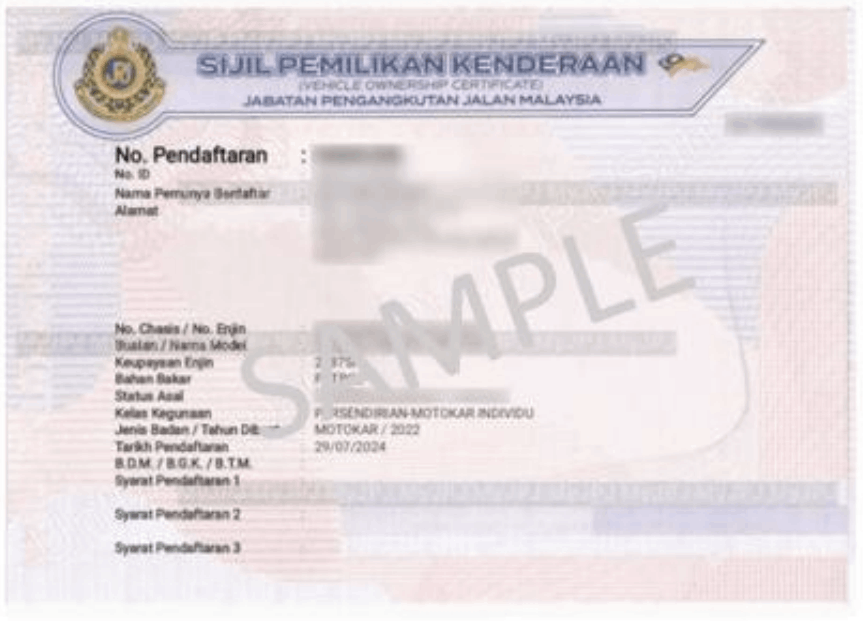
2. Upload a copy of the vehicle ownership certificate from the MyJPJ app and it must show the details clearly, completely and without obstruction.
3. Take photos of the front and back view of the vehicle clearly, completely and showing the full view of the vehicle and vehicle registration plate in good light.
4. Optionally, select the vehicle as default to be displayed at the ‘Home’ page of the app.
5. Confirm the submitted images and details are accurate.
6. Please note that the ownership and vehicle details must match. Failure to do so will result in result in inaccurate details being captured, rejection and require resubmission.
1. You can obtain this from the MYJPJ app (kindly refer to Image 1 for your reference) or visit https://www.jpj.gov.my/.
2. Failure to do so will result in result in inaccurate details being captured rejection and require re-submission.
Image 1
When you add the vehicle, kindly indicate if you are the
1. Authorised user of the vehicle
a. Provide the supporting documents i.e. MYKAD and the Vehicle Ownership Certificate of the owner.
2. Authorised to use this vehicle, registered to a business, organisation or government body
a. Provide the supporting documents i.e. Business Registration Certificate and the Vehicle Ownership Certificate of the owner.
3. Take photos of the front and back view of the vehicle clearly, completely and showing the full view of the vehicle and vehicle registration plate in good light
4. This request will be approved manually within 48 hours (excluding weekends and public holidays).
5. Please note that the ownership and vehicle details must match. Failure to do so will result in result in inaccurate details being captured rejection and require resubmission.
You can add up to 10 vehicles at any time.
You will need to delete the old vehicle and perform the e-KYV process with the new vehicle.
A customer service representative will manually verify this matter and, if necessary, contact you via your registered email address and/or mobile number.
1. Please delete the vehicle from the app immediately.
a. Go to ME > VEHICLES tab
2. If you fail to do so, you will continue to be charged for future toll transactions when the vehicle is used for ANPR by the new owner.
3. There is 24 hours cooling period before the vehicle is deleted from the app.
The e-KYP stands for Electronic Know Your Payment, a digital process used to verify a customer's payment method through electronic means by using an online payment gateway.
Please ensure you have successfully completed e-KYC to add a payment method.
The steps for e-KYP are as below: -
1. Customer will be redirected to the appointed online payment gateway to validate the bank card chosen for ANPR on PLUS highways.
2. The bank cards accepted must be a Credit Card / Debit Card / Prepaid Card with the MyDebit / Mastercard / Visa / American Express logos and issued by a bank in Malaysia.
3. Customer will have to enter the bank card details and save the details for future transactions; and
4. Customer will have to enter the OTP or approve the mobile app push notification from the bank card issuer bank to confirm.
1. Please delete the bank card from the app.
a. Go to ME > PAYMENT METHODS tab
2. If you have more than one bank card linked to your JustGO account, the selected card will be deleted immediately.
3. If you are deleting the last remaining bank card linked to your account, it will be subject to a 24-hour cooling period before it is permanently deleted.
4. If you have entered the highway but have not yet exited, the toll payment for that journey will continue to be attempted using the deleted bank card, based on your payment priority, until the cooling period ends.
5. Once your new bank card is ready, please add it to the app with the updated card details.
1. If you have more than one payment card linked to your JustGO account (for example, three cards), the selected card will be deleted immediately.
2. If you only have one payment card linked to your account, the card will not be deleted immediately. Instead, it will enter a 24-hour cooling period before the deletion is completed.
1. Please delete the bank card from the app.
a. Go to ME > PAYMENT METHODS tab
2. If you have more than one bank card linked to your JustGO account, the selected card will be deleted immediately.
3. If you are deleting the last remaining bank card linked to your account, it will be subject to a 24-hour cooling period before it is permanently deleted.
4. If you have entered the highway but have not yet exited, the toll payment for that journey will continue to be attempted using the deleted bank card, based on your payment priority, until the cooling period ends.
5. Once you have received your replacement or new bank card, please add it to the app.
1. To verify your card, a temporary RM4 authorisation is placed when you add a new payment method. This is not a charge, and no amount is collected by JustGO.
2. The authorization will be automatically voided once verification is successful. The time it takes for the amount to be released may vary depending on your bank
1. The RM4.00 charge is used for verifying the security, existence and integrity of the card.
2. It is not an actual charge, and you will be refunded immediately after e-KYP process.
You may add up to 3 bank cards at any given time.
1. Each customer must prioritise the bank card to be used for payment in descending order.
2. The card listed on the top will be attempted to be charged first followed by the card(s) below respectively, in accordance with the payment priority list.
1. Please ensure you have enabled CNP (Card-Not-Present) function for the debit/credit card.
2. Kindly enable this function in your bank's mobile app, online banking portal, or ATM.
1. At the Registration page, please choose Business at the Identification Type.
2. You will be required to provide these details
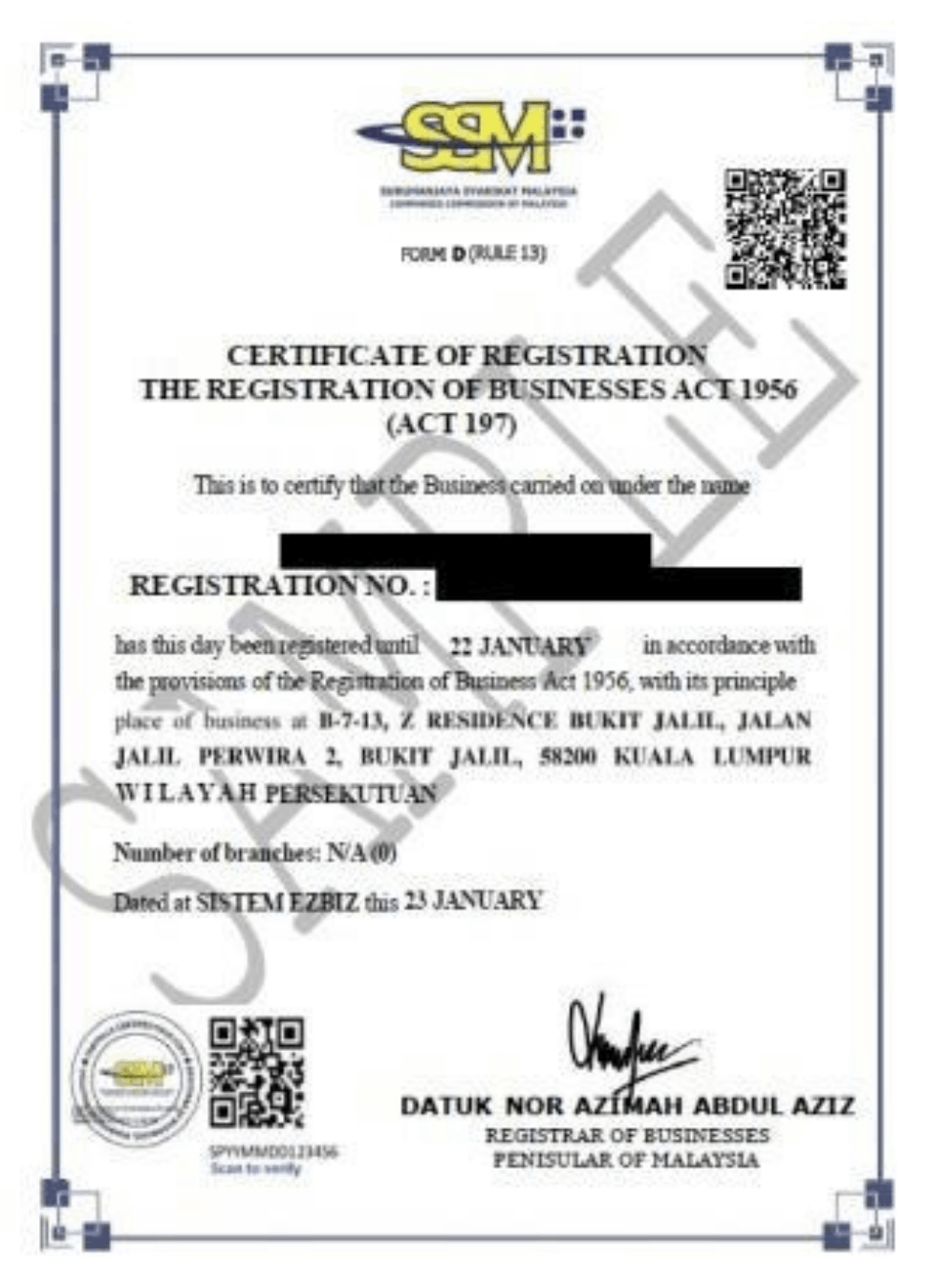
a. The new format 12-digit business registration number. You can visit https://www.ssm.com.my/Pages/e-Search.aspx for more information.
b. Email address
c. Mobile number
3. And other relevant details as stated on the Registration Page.
You will be required to complete the identity verification (e-KYC) process are as below.
1. Verify the business identity using an official identification document.
2. Important note : kindly ensure that the business registration certificate must be in the format that includes the 12-digit business registration number
3. A clear, complete, and unobstructed photo of the document must be taken, showing all required details; and
4. Confirm the submitted image and details are accurate.
You may take a photo of the business registration certificate that features the new format with the 12-digit business registration number.
a. Photo taken of the digital (e.g., screenshot or PDF capture) and or the physical (e.g., printed copy photographed) versions are accepted.
b. Alternatively, you may purchase a copy (available in Malay and English versions) from the service providers listed below: -
i. SSM e-Info portal at https://www.ssm-einfo.my;
ii. MYDATA-SSM portal at https://www.mydata -ssm.com.my;
iii. SSM Search portal at https://www.ssmsearch.com; or
iv. SSM SAFEDATA at https://www.safedata-ssm.com.
c. Failure to do so will result in inaccurate details being captured, rejection and require re-submission.
Image 2
Source: https://www.ssm.com.my/Pages/Product/BusinessInformation.aspx
1. At the Registration page, please choose Others at the Identification Type.
2. You will be required to provide these details
a. Email address
b. Mobile number
c. Authorisation Letter and Supporting Documents to confirm your identity and registration in Malaysia.
You will be required to complete the identity verification (e-KYC) process are by providing the details and documents listed below.
1. Authorised applicant’s details as stated on the page
2. Authorisation letter on entity's official letterhead with address, telephone number, company stamp with authorised signature, together with the applicant's (in this case is the staff)'s details i.e. full name, identification number, contact number & email address – the later 2 should be similar/may not be, to when applicant registered for an account (Compulsory submission)
3. Other supporting document in the form of Government Gazette Notification/Warta Kerajaan / Official Letter of Confirmation from Local Authority/Certificate of Incorporation or Registration with an authorized body (Compulsory submission)
4. Important note: your submission will be verified manually within 48 hours (not including weekends and public holidays).
1. You can sign-in using your registered email address, or mobile number.
a. Should you choose email address, your One Time Password (OTP) will be sent to your registered email address.
i. You can also choose to sign-in using your registered email address and password.
b. You may request to reset your password, and you will be required to input the OTP to your registered email address.
2. If you have difficulties in retrieving your email address, kindly send us your details using the in-app form for further assistance.
3. For security purposes, you will be required to verify your email address and/or mobile number.
1. Please Navigate to ME > MY PROFILE
2. Please verify your mobile number for security purposes.
1. Please Navigate to ME > MY PROFILE
2. Please verify your email address for security purposes.
1. You are unable to access as the information exists in our system. You could have an existing PLUSMiles Account as PLUSMiles Members are pre-registered with a JustGO Account.
2. Please contact us at contact@justgo.com.my for further assistance.
3. We apologize for this inconvenience.
OTP is a one-time password that is a unique, 6-digit temporary code sent to a customer to verify their identity during a digital process. It is valid for a short period and can only be used once.
1. The OTP is valid for 2 minutes.
2. Should you key-in the wrong OTP or faced unexpected delays to key-in, please request again after 30 seconds.
1. The maximum number of OTP requests allowed is 3 times per day.
2. Please try again the next day if you have exceeded this limit.
1. Navigate to ME > MY PROFILE Tab to update to your latest personal details.
2. Should you be updating your email address and/or mobile number, you will be required to verify the updated detail(s).
Yes, you will be required to perform the e-KYC again with your new identity document i.e.,MYKAD.
1. Please ensure you update your account with your latest details.
2. This will ensure your account is protected for your ease of use and security.
Yes, you will be required to perform the e-KYC again with your new identity document i.e., passport.
1. Please ensure you update your account with your latest details.
2. This will ensure your account is protected for your ease of use and security.
Yes, you will be required to update your new mobile number or email address.
1. Navigate to ME > MY PROFILE Tab to update to your latest personal details.
a. To update your email address, please sign-in with your mobile number.
b. To update your mobile number, please sign-in with your email address.
2. Please ensure you update your account with your latest details.
3. This will ensure your account is protected for your ease of use and security.
A customer service representative will manually verify this matter and, if necessary, contact you via your registered email address and/or mobile number.
Individuals will earn reward points for toll payments at a rate of 1 kilometer = 1 point. Please ensure that all your Touch ’n Gos and RFID tags have been added to your account.
We regret to inform you that loyalty points are not awarded to business users at this time.
A customer service representative will manually verify this matter and, if necessary, contact you via your registered email address and/or mobile number.
Kindly contact us at contact@justgo.com.my for resolution.
ANPR is the abbreviation for Automatic Number Plate Recognition; a solution that uses cameras and image recognition software to detect a Vehicle’s number plate for toll payment purposes exclusively on PLUS Highways.
Please be informed that ANPR is only available for Class 1 vehicles only. These are passenger cars with two axles and three or four wheels, such as sedans, SUVs, MPVs, and small pick-ups. Class 1 is the largest group of highway users, and starting here allows the system to stabilize and fine-tune before it expands to other vehicle classes in later phases.
ANPR is available at ALL LANES at ALL TOLL PLAZAS on PLUS Highways with the exception of:
a. Jambatan Pulau Peang Toll Plaza; and
b. U-turn at Tanjung Kupang Toll Plazas,
c. Please take note that only the RFID lanes at Bandar Cassia Toll Plaza are currently activated for ANPR
Kindly refer to the JustGO website www.justgo.com.my or JustGO social media accounts for the latest list of participating toll plazas and locations, which may be amended, expanded or discontinue from time to time at the discretion of JGS.
1. Please ensure you have successfully performed these 5 steps: -
a. Email verification;
b. Mobile number verification;
c. Identity verification (e-KYC);
d. Vehicle verification (e-KYV);
e. Payment verification(e-KYP).
You’re ready to go once the following are in place:
1. Home Screen Confirmation : Your JustGO app home screen displays your vehicle plate number and your linked payment method (bank logo).
2. Active ANPR Status : Go to your Profile Page and make sure your ANPR status shows “ACTIVE.”
3. Once both are confirmed, you can start using ANPR toll payment at supported highways.
1. You will be able to view your ANPR toll transactions in the TRANSACTIONS tab in the app.
2. You can also download the relevant transactions.
1. SUSPENDED status indicates there are outstanding payment(s) on your toll transaction(s).
2. You will receive a notification in your app notifying you of this.
3. Please clear the outstanding payment (s) in the Transactions tab which will be indicated in red.
4. When your account is suspended, you will not be able to : -
a. use ANPR as your payment mode
b. add, delete and change default vehicle
Should you require any clarification or further assistance, kindly contact us at contact@justgo.com.my.
1. No, you will be unable to do so.
2. Kindly ensure that you have sufficient funds in your bank card before you start your journey.
3. If you are mid-way in your journey, kindly pull aside in a safe area i.e Rest & Relax Area (R&R) to top-up your bank card safely.
1. In LOCKED status, you will not be able to use ANPR to pay for your toll at all.
2. You will receive a notification in your app notifying you of this.
3. Kindly contact us at contact@justgo.com.my for resolution.
4. We apologise for this inconvenience.
1. In LOCKED status, you will not be able to use the app at all.
2. You will receive a notification in your app notifying you of this.
3. Kindly contact us at contact@justgo.com.my for resolution.
4. We apologise for this inconvenience.
1. During your recent toll plaza entry, the Automatic Number Plate Recognition (ANPR) system was unable to detect your vehicle's number plate. As a result, the toll fare could not be charged to your linked bank card and charged to your Touch ‘n Go e-Wallet.
2. No further action is required on your part.
1. Yes, you will receive PLUSMiles Points.
2. PLUSMiles Points is given based on 1 kilometre = 1 Point and expires after 6 months.
3. Please log-in to PLUS App to access your PLUSMiles account to check for the Points and make a redemption.
Please contact us at contact@justgo.com.my.
Please try to stay calm and press the intercom button for assistance.
1. An e-Invoice is a digital representation of a transaction between a supplier and a buyer i.e. you, which requires verification from the Inland Revenue Board of Malaysia (IRBM) before it is issued to you. It contains essential information such as the supplier's and buyer's details, item descriptions, quantities, prices (before tax), taxes, and total amount.
2. The e-Invoice will capture the below transactions where applicable to the highway company: -
a. all forms of toll payments on PLUS Highways, LPT2 Highways and LLB Highways; and
b. TNG cards purchases at toll plazas on PLUS and LPT2 Highways; and
c. toll violation payments for PLUS and LPT2 Highways;
3. The e-Invoice will be issued on a monthly basis.
For more information about e-Invoice, please visit the Inland Revenue board of Malaysia (IRBM) website at www.hasil.gov.my/en/e-invoice.
1. All PLUS, LPT2 and LLB users (as defined below) can register for e-Invoice
a. Individuals aged 18 & above
b. Businesses that are registered in Malaysia.
c. Others that are not individuals or businesses i.e. government, state government and state authority, government authority, local authority, statutory authority and statutory body, and exempt institutions that are not assigned with a TIN.
To register for e-Invoice, you must create a JustGO account and complete the following verification steps:
a. Email verification
b. Mobile number verification
c. Identity verification (e-KYC)
1. Navigate to e-Invoice tab to confirm your details and opt-in.
2. You will be required to confirm these details : -
a. Full name
b. MYKAD/MyTentera number/passport number
c. Tax Identification Number (TIN)
i. For individuals, your MYKAD/MyTentera/passport number is used to search for your TIN.
ii. For businesses, your Business Registration Number (BRN) is used to search for your TIN.
iii. For Others, you will be assigned the Public TIN.
1. The Tax Identification Number (TIN) also known as the Income Tax Number, is a unique identifier assigned to individuals and business entities who are registered taxpayers with Inland Revenue Board of Malaysia (IRBM) and is an alphanumeric identification.
2. A Malaysian taxpayer can check for the TIN on the front page of their income tax return or these channels: -
a. MyTax Portal at https://mytax.hasil.gov.my under “e-Daftar” menu
b. HASIL live chat
c. HASIL care line (03-8911 1000)
d. visit the nearest HASIL branch.
If no TIN is available, a public TIN will be assigned to you for e-Invoice as below: -
a. EI00000000010 (Malaysian)
b. EI00000000020 (non-Malaysian)
c. EI00000000040 (Government)
Kindly contact us at contact@justgo.com.my for resolution.
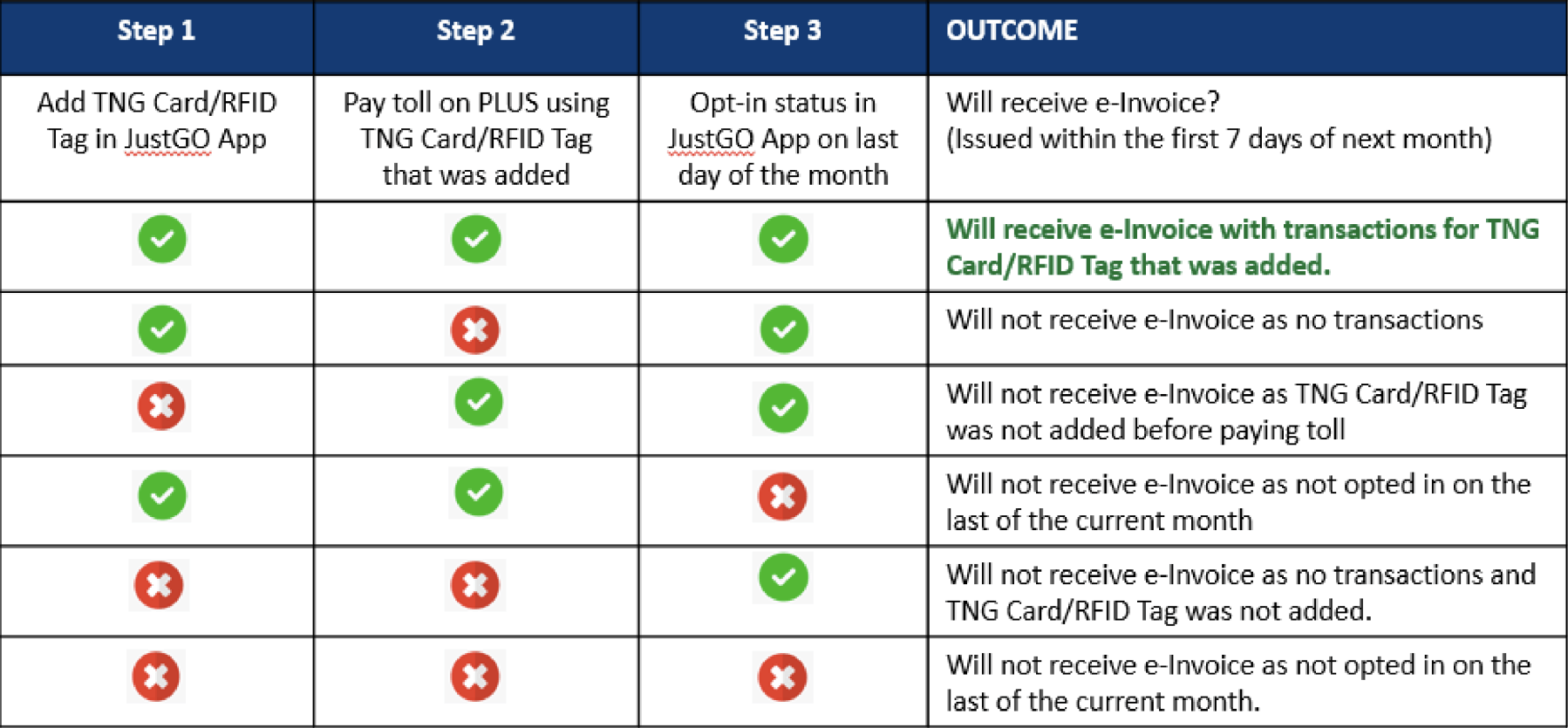
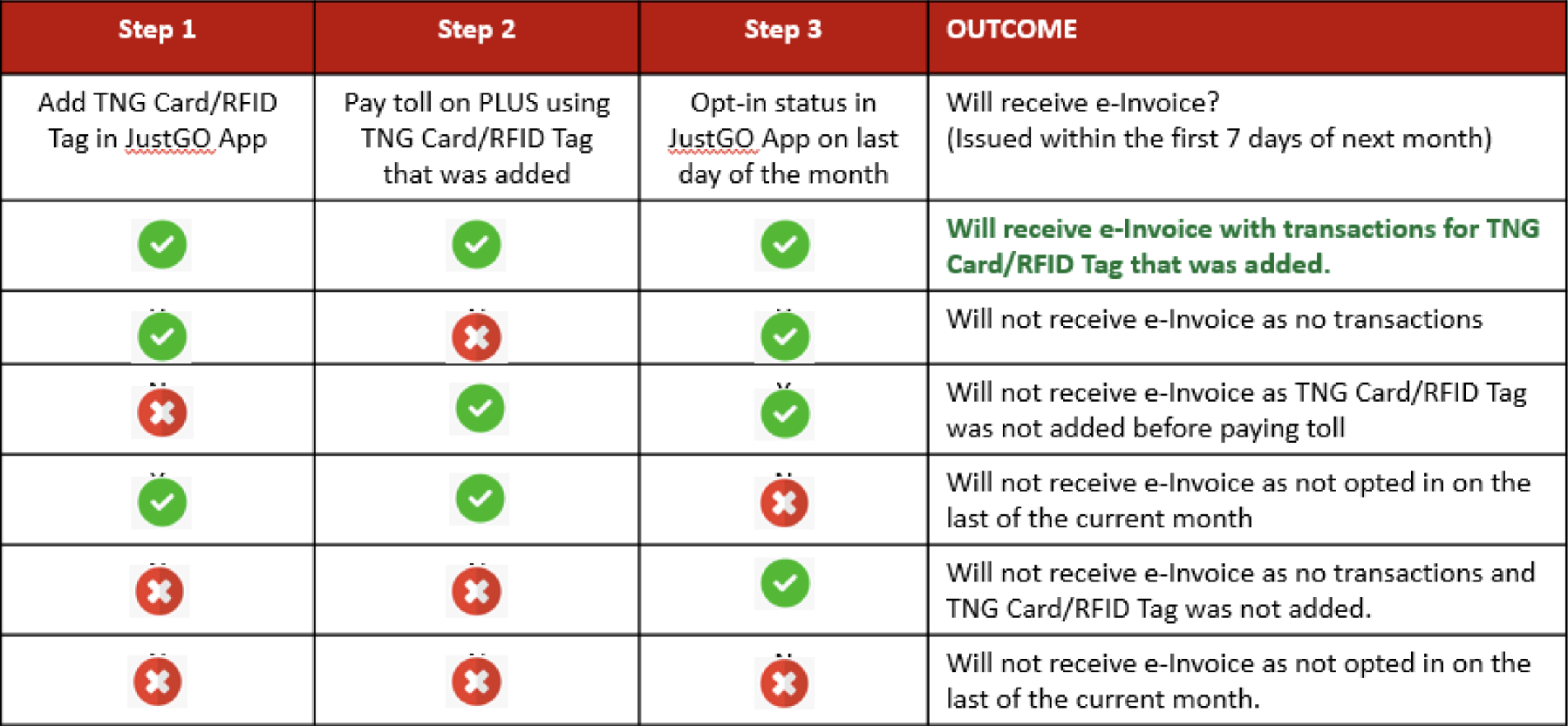
Kindly ensure you: -
1. Add your Touch ‘N Go card/RFID Tag
2. Pay toll using the Touch ‘N Go card/RFID Tah was added
3. Opt-in on the last day of the month
4. You will receive your monthly e-Invoice in the first 7 days of the next month.
You may refer below. 
You may also refer to the 2 scenarios.
Scenario A:
1. Ali added his TNG Card with number 123 on 5 August 2025.
2. Ali paid toll using his TNG Card with number 123 on 6 August 2025.
3. Ali is opted in for e-Invoice on 31 August.
4. Ali receives his e-Invoice next month with transactions for TNG Card with number 123.
Scenario B:
1. Ali paid toll using his TNG Card with number 123 on 6 August 2025.
2. Ali added his TNG Card with number 123 on 7 August 2025.
3. Ali paid toll using his TNG Card with number 123 on 8 August 2025.
4. Ali is opted in for e-Invoice on 31 August.
5. Ali receives his e-Invoice next month with transactions for TNG Card with number 123 for 8 August onwards.
Kindly ensure you have completed the steps as per FAQ 68#
1. You will be able to retrieve and download your e-Invoices;
2. It will also be sent via email (from e-invoice@justgo.com.my) to your registered email address.
3. You may retrieve up to the last 24 months of e-Invoices starting from your opt In date, in the JustGO app.
1. Navigate to ME > e-Invoice settings.
2. If the information displayed is incorrect or inaccurate, kindly contact us at contact@justgo.com.my.
Limit for individuals
1. You can add up to 10 TNG cards and 10 RFID Tags.
2. You must update the details of your TNG Card and or RFID Tags in order for the toll payment transactions to be included in your e-Invoice.
Important note: Failure to do so will result in the related toll payment transactions being excluded from your e-Invoice.
Limit for businesses
1. You can add up to 2,000 TNG cards and 2,000 RFID Tags.
2. You must update the details of your TNG Card and or RFID Tags in order for the related transactions to be included in your e-Invoice.
Important note: Failure to do so will result in the related transactions to be excluded from your e-Invoice.
1. Kindly update the details of your newly purchased card within 30 days of the purchase date.
a. Navigate to ME > My TNG / RFID Tag tab.
2. By updating the card within 30 days of its purchase, the card purchase transaction will be included into your e-Invoice.
3. If you update the card after 30 days of its purchase, the card purchase transaction will not be included into your e-Invoice.
4. Kindly refer below: -
1. Please delete the existing TNG card and/or RFID tag.
2. Please add the TNG card and/or RFID tag with new details.
3. Navigate to ME > MY TNG CARDS or RFID Tag tab respectively.
4. Important note : Failure to add your TNG Card and or RFID Tag details will result in the related toll payment transactions to be excluded from your eInvoice.
1. Yes. Navigate to ME > My TNG / RFID tag tab.
2. By updating the TNG Card and or the RFID Tag detail (s), all the related transactions will be included into your e-Invoice.
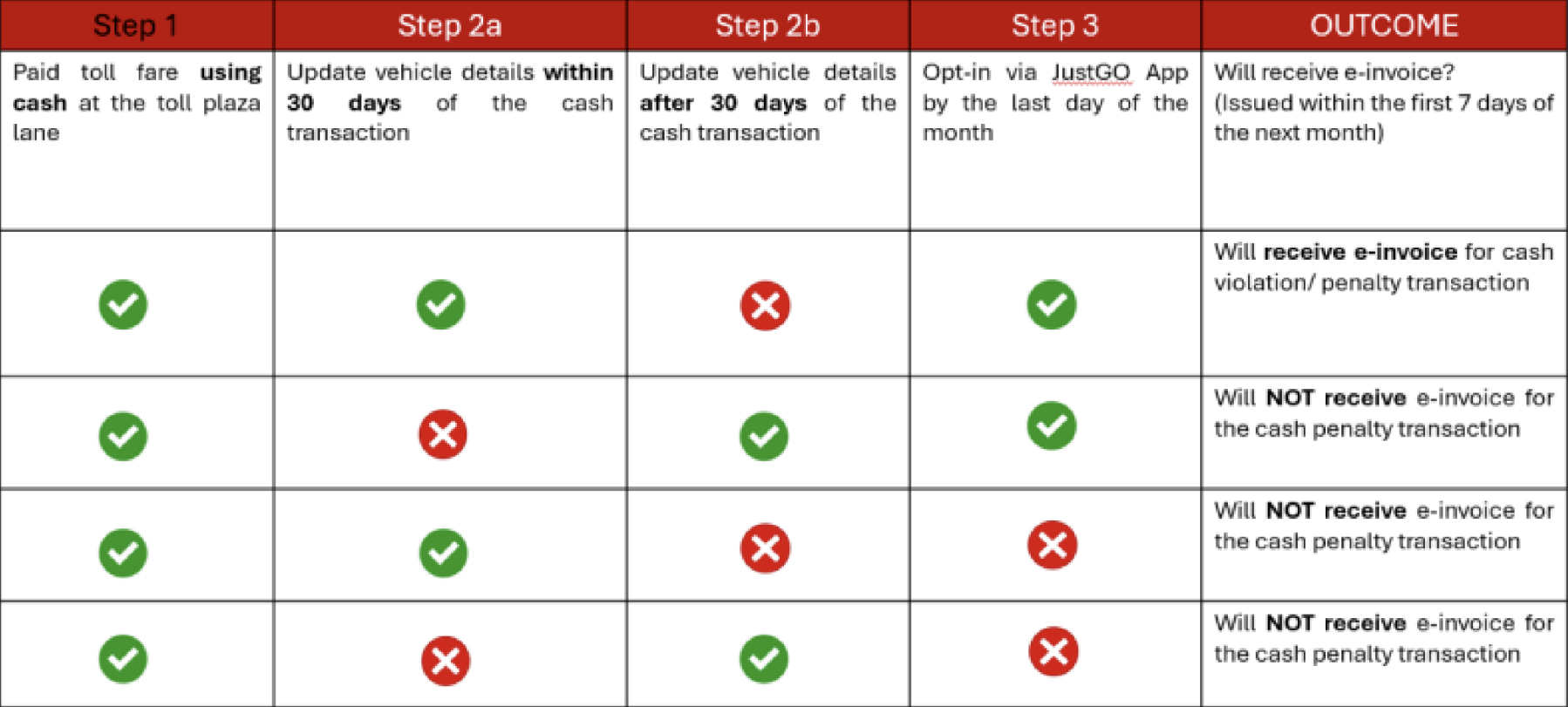
1. Kindly update the details of your vehicle within 30 days of the cash transaction,
2. Navigate to home page or Settings.
3. By updating the vehicle detail within 30 days of the cash transaction, it will be included into your e-Invoice.
4. If you update the after 30 days of the cash transaction, it will not be included into your e-Invoice.
5. Kindly refer below
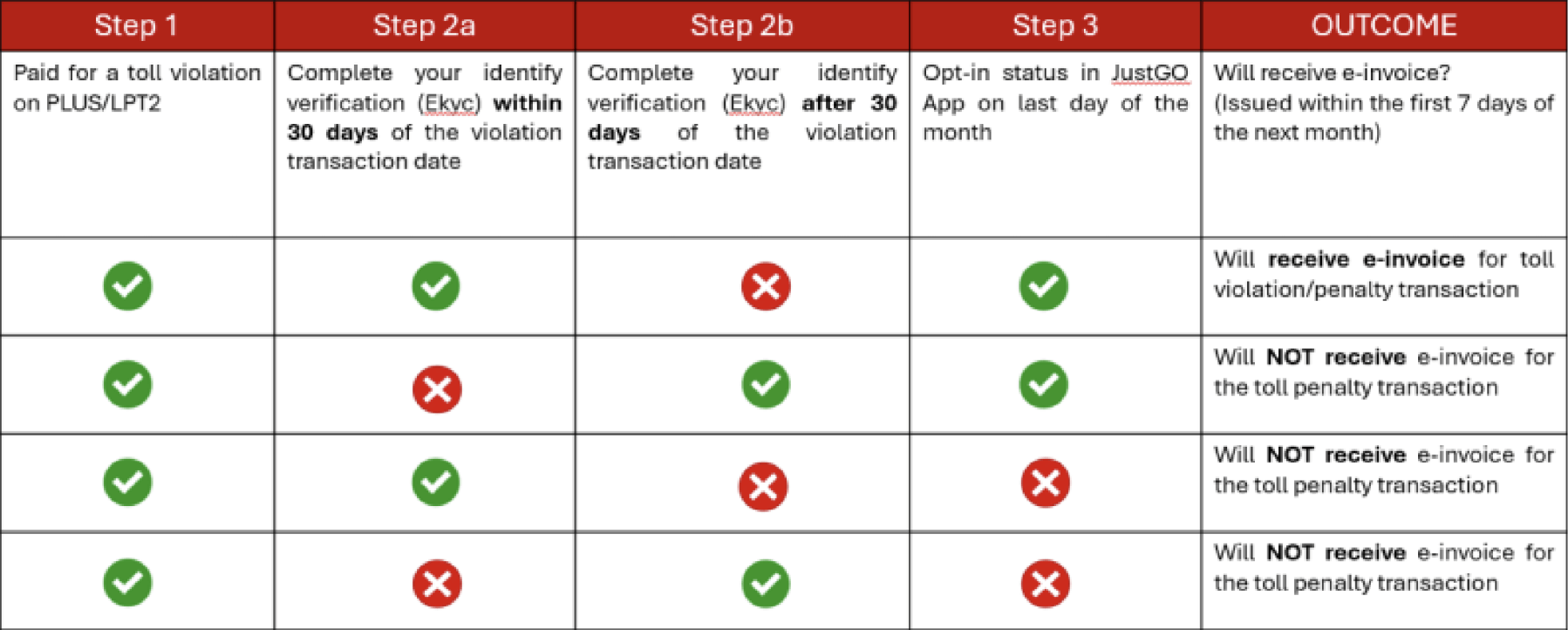
1. Kindly register for a JustGO Account within 30 days of the violation; and
2. Complete your identify verification (eKYC)
3. Kindly refer below.
1. The full toll charge represents the total fare you paid to travel along the entire stretch.
2. Please note that LPT1 and LPT2 are operated by two different highway concessionaires.
3. Therefore, the e-Invoice from LPT2 only reflects the portion of the toll fare attributed to LPT2, which covers the section between Jabor and Kuala Terengganu.
4. LPT1 (East Coast Expressway Phase 1), covering the stretch from Karak to Jabor, is operated by AFA Prime Berhad.
1. Opt in : when you opt in, you will be able to obtain copies of your monthly eInvoice.
2. Opt out : when you opt out, you will no longer receive your monthly e-Invoice.
1. You will stop receiving your monthly e-Invoices from the date you Opt out.
2. However, you will still receive your previous month’s e-Invoice.
3. You will still be able to view your e-Invoices in the app.
4. You will receive your monthly e-Invoices when you Opt In again anytime.
1. Kindly contact us at contact@justgo.com.my for resolution.
2. The e-Invoice is correct at the time of generation. If you have any disputes or inquiries, please contact us within 14 calendar dates from the invoice date. Disputes raised after this period will not be entertained.
Kindly contact the respective highway operator to obtain the e-Invoice for the related transaction(s).
Kindly note that this is subject to the implementation of e-Invoice by Business Partners at the R&R for issuing e-Invoices to their customers.
You may contact us at contact@justgo.com.my
For more information about JustGO, kindly refer to:
1. Facebook: https://www.facebook.com/JustGoMalaysia
2. TikTok: https://www.tiktok.com/@justgomalaysia
3. X : https://x.com/JustGO_Malaysia
4. Instagram: https://www.instagram.com/justgo_my/
5. Threads: https://www.threads.com/@justgo_my
6. YouTube: https://www.youtube.com/@JustGO-ANPR
For any feedback, please contact us at:
contact@justgo.com.my